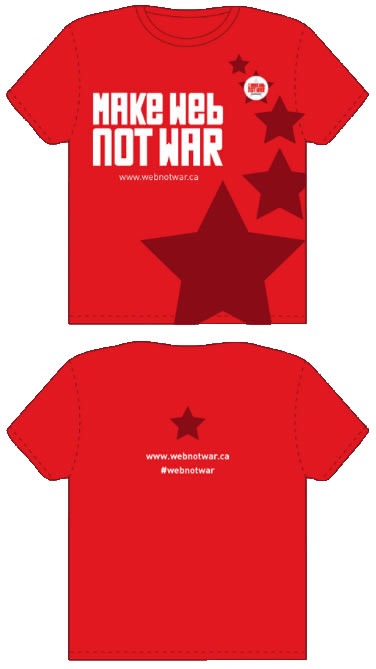
If you’d like to know more, see yesterday’s article about Make Web Not War. If you’d like to register, visit the registration page.
{ 0 comments }
Tech Evangelist Joey deVilla on software development, tech news and other nerdy stuff
Posts tagged as:
If you’d like to know more, see yesterday’s article about Make Web Not War. If you’d like to register, visit the registration page.
{ 0 comments }
If you’re interested in web design and development, you should attend Wednesday’s Make Web Not War conference. It’s being presented by Microsoft Canada and is about the how open source tools like PHP and Microsoft technologies like IIS and SQL Server 2008 can be used together to make great web sites and applications. No matter how much (or how little) Microsoft technology you use in your web development, there’s a lot to see at Make Web Not War!
We’ve got a number of speakers, each talking about some different aspect of the interoperability between Microsoft and open source technologies, as well as their experiences and lessons learned working in the web industry:
David Crow is an emerging technology and start-up advocate. At Microsoft Canada, he is responsible for helping Canadian start-ups through programs like BizSpark (details at microsoft.com/bizspark). David helps companies understand emerging technology and design practices for creating compelling digital experiences. David focuses on helping companies to extend their customers’ reach with next generation technology for the desktop, digital devices, standards based applications for the Web, and rich media applications. He has been named Toronto’s Best Web and Tech Evangelist for his efforts in DemoCamp, BarCampToronto, Founders & Funders and StartupEmpire.
Mano Kulasingam is a founding partner and principal interactive designer /developer with Digiflare, focusing on presentation layer technologies like Microsoft Silverlight, Windows Presentation Foundation and SharePoint 2007. He also has several years of experience developing B2B and B2C eCommerce and Content Management Web applications using ASP.NET (2.0 and 3.5) and Visual C#. His design skills include working with the latest professional design tools including Microsoft Expression Studio 2, which has earned him a Microsoft Expression MVP nod. He is a co-founder and host of the Toronto Silverlight User Group.
Brendan is a prominent member of FlashinTO, PHUG – Open Source Culture, has taught web design at Long Island University Brooklyn campus, and has been a professor at Seneca College in the School of Communication Arts for over 7 years. Brendan currently owns and operates BackSpaceStudios, a web company specializing in WordPress development, social media applications. He is also the founder of PHUG, an open source community for designers and developers with currently over 4000 members, faculty at Seneca College, and organizer for WordCamp Toronto 2009. Brendan has contributed to many open source projects including papervision3D, red5, Firefox, WordPress, and Drupal, just to name a few.
Under the brand myhosting.com we offer Shared and Virtual Web Hosting as well as Exchange 2007 and WSS hosting to customers around the world.
Stephen is Vice President of Sales at Softcom, a Gold certified Microsoft Partner based in Toronto and specializing in transactional hosting with a focus on the SMB market. His key role is to oversee the customer life cycle experience and drive new sales opportunities through the direct, affiliate and partner channels.
Yann Larrivée has been developing web applications for over 7 years and is currently offering PHP consulting services. In the past he has worked in many position from, project manager for a Linux consulting company to web architect for a well know company in the gaming industry. He also founded the PHP Quebec community in 2003 and organizes an international PHP conferences and an IT JobFair.
Windows Server 2008 R2 is a great server operating system, and this is your chance to take it out for a spin! Bring a machine to the Make Web Not War Installfest – it could be a server, desktop or even a laptop – and we’ll walk you through the process of installing your own free copy (which is good for a year). Space is limited – we’ve only got room for 100 people, so sign up soon!
The Ultimate FTW! Throwdown was a challenge pitting student developers against professionals to develop a new PHP-on-Windows app or port an existing PHP-on-LAMP app to run on Windows Server with IIS. There were even bonus points for apps that made use of SQL Server as their database!
We took in a bunch of submissions, and the judges have narrowed it down to two finalists, one student, one professional:
In the professional corner is Dac Chartrand, whose submission is Sux0r, a content-management system incorporating blogging, RSS aggregation, bookmark repository and photo publishing, all with a focus on naive Bayesian categorization and probabilistic content. The extra Bayesian/probabilistic goodies allow Sux0r to auto-categorize its content and users to train it to categorize better.
His student opponent, Carson Lam, submitted Transit DB, which aims to transform the way commuters interact with public transit information system. The application is Carson’s answer to the question “How can we provide a modern, clean and user-friendly interface for transit data in cities?” The current version covers public transit for the Metro Vancouver region.
Dac and Carson will be competing for bragging rights and cold hard cash – may the best project win!
(For more details about the Ultimate FTW! Throwdown, see its page on PHPonWindows.ca.)
We don’t want to do all the talking at Make Web Not War, we also want to hear from you!
That’s why, when you arrive at the event, one of the first things we’ll do is hand you an AVW-TELAV audience response doohickey. It’s a microphone for the Q&A sessions at the end of each presentation, but it’s also an instant audience polling device for quick surveys that we’ll have throughout the day.
All work and no play makes you a dull and burned-out web designer or developer, which is why we’ve also got a lounge where you can just hang out, meet the speakers, ask me questions about Microsoft’s web tools and tech and play XBox games.
We’ve got all sorts of prizes that you can win throughout the day, from software to books to trainign courses to Zune media players to XBox games to a brand new laptop.
Yup, we’re providing breakfast and lunch. You can’t conference on an empty stomach!
Around this much:
Instead of charging a standard admission, we’re charging a “Donate what you can” rate, with all proceeds going to PREVNet.ca, an anti-bullying group. The suggested donation is a mere $10.
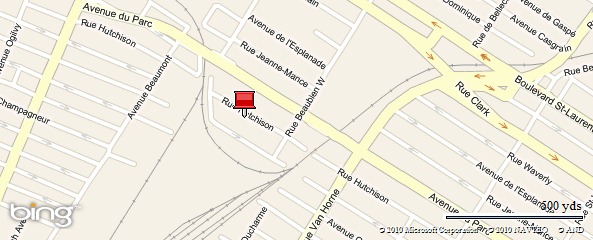
Once again, Make Web Not War takes place this Wednesday, June 10th and runs from 8:30 a.m. to 5:00 p.m.. It’s happening in Toronto at Ryerson University’s Ted Rogers School of Management (55 Dundas Street West – that’s Dundas between Bay and Yonge, right by the Best Buy and Canadian Tire). There’s parking aplenty in the area, and it’s right by Dundas Station on the Yonge/University/Spadina subway line.
Visit the Make Web Not War registration page and fill out your details, and we’ll see you there on Wednesday!
{ 3 comments }
This article also appears in Canadian Developer Connection.
The Make Web Not War event in Toronto takes place in exactly one week! We’ve been spreading the word about the event and I thought I’d do my part by helping out with a video, accordion-style:
MAKE WEB NOT WAR – VIDEO FOUR – TORONTO from The Biz Media on Vimeo.
There’s only one mistake in the video – “accordion” is misspelled. If you’d like the follow me on Twitter, the correct ID is AccordionGuy, not AccordianGuy.
For more details about Make Web Not War, see:
{ 1 comment }
The “sea change” that’s been going on at Microsoft for the past little while is one of the things that convinced me to join the company and one of the factors in their even asking me to come in for a job interview. One of the most telling signs of this sea change is in Microsoft’s new approach to open source and web, with initiatives like the Open Source Lab, improved standards support in IE8, PHP on Windows, the Web Platform Installer and Open Source Initiative-approved MS-PL license, to name a few.
We know that the web is a big salad bar of various technologies put together by different vendors and organizations, and at long last, it seems that we’re cool with that. We’ve been reaching out to web developers of all stripes, from Microsoft “true believers” to people who don’t typically build their stuff with or on our stuff.
Make Web Not War is an event being held in Vancouver on June 2nd and Toronto on June 10th where we invite people building solutions on the web – whether you build on Microsoft tech or not – to get together and:
The Vancouver event takes place today, June 2nd at Microsoft’s Vancouver office (1111 W. Georgia, 11th floor). It’s a half-day event featuring a presentation by Morten Rand-Hendriksen from Pink and Yellow Media as well as breakfast, a web partner community showcase and a lunch social.
The Toronto event takes place on Wednesday, June 10th at the Ted Rogers School of Management (use the entrance at 55 Dundas Street W.) and runs from 8:30 a.m. to 5:00 p.m.. It’s a full-day event with presentations by:
The Toronto event will feature breakfast, keynote, web partner community showcase, another keynote, lunch, breakout sessions, a Windows Server 2008 InstallFest, a web developer technical session and the FTW! competition final showdown. It’s be a very full day.
The registration fee for both the Vancouver and Toronto events is “donate what you want”, with a suggested donation of CAD$10. The money will go to a good cause: PREVnet.ca, the anti-bullying network.
Whether you’re a died-in-the-wool ASP.NET type, think in PHP or create new web applications by typing in rails mynewapp at the command prompt, Make Web Not War has something for you. For more details about Make Web Not War, check out the official site.
{ 2 comments }

You’ve probably heard of Microsoft’s Web Platform Installer, a free-as-in-beer tool that makes it a snap to install a variety of Microsoft and Open Source web applications and development tools, ranging from “The Usual Suspects”, such as Visual Web Developer, IIS and SQL Server 2008 Express to stuff you might not expect, such as PHP and Wordpress. It makes installing these goodies a simple of matter of checking the items you want and clicking the Install button. (While the old way of installing PHP on Windows wasn’t rocket science, it involved enough steps and configuration changes to justify my writing a whole article on the topic in an old developer blog of mine.)
One necessary thing that the Web Platform Installer doesn’t do for you – and I assume it’s because of licensing restrictions of one kind or another – is install MySQL, which many PHP apps, including a number that the Web Platform Installer installs, use. You’ll be told that you need to install MySQL, but it leaves installing it up to you.
Hence this article, where I walk through the steps of installing MySQL Server 5.1 on Windows for a developer machine. Whether you just need PHP and MySQL so that you can experiment with Wordpress template designs or are the “I build on Windows, but deploy on Linux” type or are developing for a server setup where IIS is serving both ASP.NET and PHP apps (and yes, IIS does that!), you’re going to want MySQL on your dev box.
The version we’re interested in is the free-as-in-both-speech-and-beer Community Edition, which is available at the MySQL site. Here are the links to the installers:
Both these options provide you with three different installers. I recommend getting the .msi (Windows Installer) as it’s the lowest-headache option. It’s also the version I use in this walkthrough.
By the way, the screenshots provided in this walkthrough are from my actual installation process on my laptop, which runs the 64-bit edition of Windows 7 Beta, Build 7000 (I’m not installing the Release Candidate until later this week). I’m installing the 64-bit version of MySQL Server 5.1 Community Edition, but whether you’re installing the 32- or 64-bit version on Windows XP, Vista or 7, your experience should be roughly the same.
Here’s what you should see when you launch the installer:
The first choice you have to make is the type of setup you want:
The three choices offered are:
C:\Program Files\MySQL\MySQL Server 5.1\, including:C:\Program Files\MySQL\MySQL Server 5.1\, including those listed in the Typical setup, plus:Although the components in the Typical setup will work fine for most web development purposes, I like having the docs handy, so I went with the Complete setup.
Once you’ve selected the setup, you’ll be shown a confirmation window like the one below:
Once MySQL has been installed, you’ll see the window below:
You’ll be given the choice to configure MySQL server, which I recommend. You can do so by leaving the Configure the MySQL Server now checkbox checked and then clicking Finish.
Here’s the first window of the Configuration Wizard:
You’ll be asked which configuration type to use:
The two choices offered are:
If you chose to use the Detailed Configuration, you will see the following windows.
The first choice in the Detailed Configuration is Server Type:
The three options are:
The next choice to make is selecting the storage engines to be used: MyISAM or InnoDB. If you’re not familiar with MySQL, you’re probably asking “What’s the difference between InnoDB and MyISAM?”
Of the two engines, MyISAM is the older of the two, and the default engine. The general consensus is that in most cases, it’s faster than InnoDB for typical CRUD operations. It supports up to around 4 billion rows of data and 64 indexed fields per table. MyISAM uses table-level locking, which means than when a row is being updated, the table is locked and no other operations can update any other rows until the first row is updated and the lock on the table is released.
InnoDB is the newer (and some would say sexier) engine. It’s called “the transactional one”, and it’s built with data integrity in mind. It supports foreign key constraints, meaning that changes to a table (say, “Actors”) that references another table (say, “Movies”) are allowed only if those changes leave both in a valid state. For example, you wouldn’t be able to delete a row from the “Actors” table if it referenced any rows in the “Movies” table (that is, you can’t remove an actor from the database if s/he’s listed as starring in any movies). It also supports row-level locking, which means that so that more than one row can be updated at the same time.
The general guidelines for choosing between MyISAM and InnoDB are as follows:
Keep in mind that when adding a table to a MySQL database, you can specify which engine it uses. Lately, I’ve been in the habit of specifying InnoDB for most tables except those on which I want to provide full-text search; for those, I’ve specified MyISAM. (For more on specifying engines when creating tables, see MySQL’s page on the create table command.)
Now that I’ve done a quick review of MyISAM and InnoDB, let’s look at the storage engine choices that the Configuration Wizard offers.
The three choices are:
If you chose Multifunctional Database or Transactional Database Only, you’ll be presented a windows asking you where to put the InnoDB tablespace:
I went with the default, which puts the tablespace in the MySQL installation directory.
The next window is all about the number of concurrent connections supported:
The three choices offered are:
The next window concerns itself with networking options:
Port 3306 is the default MySQL port, so that’s what I went with; I also checked the Add firewall exception for this port checkbox. I also left the Enable Strict Mode checkbox checked.
Now it’s time to select the default character encoding:
You’re given a number of options, but I suggest you go with my choice. I chose UTF-8 because it’s the encoding of the Web.
Here’s the next window:
I strongly recommend:
And now, the Security Options window…
You’ll be asked to provide a password for the root user twice.
You can also choose to:
That’s it for all the option setting. You’ll now be presented with this window:
If you’re satisfied with your configuration choices in the previous windows, click the Execute button. You’ll be presented with this window as your reward:
…and you’re done!
Let’s take MySQL for a quick spin to confirm it’s working. We’ll do this using the mysql command-line client and logging in as root. There are a couple of ways to do this. One is by firing up the MySQL Command Line Client from your Windows menu (or Start Menu on XP):
A command-line window will pop up, where you’ll be prompted to enter the root password. Enter it, and you’ll be in the command-line client!

The other way is to fire up the Command Prompt and (if you specified that you wanted MySQL’s bin directory included in Windows’ PATH, which you should have), enter mysql –u root –p. The -u switch is for specifying a username, and the -p switch is for specifying that you will be providing a password for the specified username.
You’ll be prompted to enter a password. Enter the root password and you’ll be in the command-line client:
And MySQL is ready to use! You can now use the Web Platform Installer to install PHP-based apps that require MySQL.
I can’t give you a walkthrough of MySQL’s command line – that’ll have to wait for another article, or you might want to check out this article – but here’s a quick one: the show databases; command (don’t forget the semicolon at the end!) will return a list of all the databases currently in the system.
Happy MySQLing!
{ 15 comments }