
The conference will be made of bite-size (15 minutes or shorter!) presentations by Tampa Bay techies and demos of capstone projects by Suncoast Developers Guild alums. Here’s the schedule, which is subject to update:
Time
Presentation
10:00 a.m.
Opening ceremony
(Suncoast Developers Guild)
Badges? We don’t need no stinkin’ badges!
(Jason L Perry)
Will it Scale?
(Robert Bieber)
11:00 a.m.
Demo: Smash Bros Combo
(Kento Kawakami)
Your Friendly Neighborhood Type System
(Dylan Sprague)
Demo: Evolution X
(Cody Banks & Abtahee Ali)
The Rubber Duck Pal Program
(Daniel Demerin)
12:00 p.m.
Furry Friends
(Colter Lena)
Demo
(Trent Costa)
Don’t Crash! CSS-Modules in React
(Dylan Attal)
How to start your own Coding Podcast 101
(Vincent Tang)
1:00 p.m.
Pull Requests, and the Developers Who Love Them
(Michele Cynowicz)
Demo: Rollerblade Buyers Guide
(Abe Eveland)
Post Bootcamp Reflections: Rebuilding my capstone in React Native
(Liz Tiller)
Create games, visual novels, and fast food dating sims (and learn programming) with Ren’Py!
(Joey deVilla)
2:00 p.m.
Demo
(Rob Mack)
“You do belong here” and other affirmations and ways to beat imposter syndrome.
(Michael Traverso)
A Taste Of Docs As Code
(Kat Batuigas)
Once again, it’s free-as-in-beer (and not free-as-in-mattress) to attend, and all you need is an internet connection! Register here.
In another life, I was a developer evangelist who travelled across North America and I saw tech scenes from Palo Alto to Peoria. I can tell you that one of the signs of a healthy tech community in a small- to medium-sized city is a coding school that acts as a social/technical/gathering place. If your city had one, things were looking up for local techies. If not, it was a safe bet that the place was experiencing a brain drain.
Here in Tampa Bay, Suncoast Developers Guild fills that vital role, and it does so spectacularly. They’re a key part of the heart and soul of tech in the area, and it shows in their efforts, such as events like this.
Thanks, Suncoast Developers Guild! I’ll see you on Saturday!
What: An online workshop where Tampa Bay’s best-known tech lawyer and IP attorney, Brent C.J. Britton, will talk about the intellectual property issues surrounding hackathons.
When: Tonight! As in Thursday, July 30th, 2020, from 6:00 to 7:30 p.m.
Let’s face it: The purpose of many (but not all) hackathons — even if it’s not the primary purpose — is to promote one or more tech company’s wares or services, or to act as a scouting exercise to find new talent. This is especially true when a hackathon is organized or sponsored by a for-profit company and especially when they encourage or require you to use one of their products, services, or APIs.
What if you participate in a hackathon held by a for-profit company and your idea is a really good one? Who owns it?
This workshop will be led by Brent C.J. Britton, local IP/techie lawyer, and generally the first guy I run to when I face some kind of intellectual property issue (and yes, I have, when a copyright troll was getting up in my business).
Check it out tonight!
Here’s Brent’s bio:
Brent Britton is the only graduate of the prestigious MIT Media Lab to become a lawyer. Brent holds degrees from the University of Maine, the The Media Lab at the Massachusetts Institute of Technology, and Boston University School of Law. He is Managing Partner for the Tampa office at De La Pena & Holiday LLP, where he advises companies on emerging business and technology law, intellectual property, complex commercial transactions.
Brent is the author of Ownability, How Intellectual Property Works and one of the most interesting and entertaining speakers in the Tampa Bay area on Startups, IP and related matters. He is recommended on Linkedin by a futurist as: “Visionary, pragmatic, insightful and full of life with a capital L”.
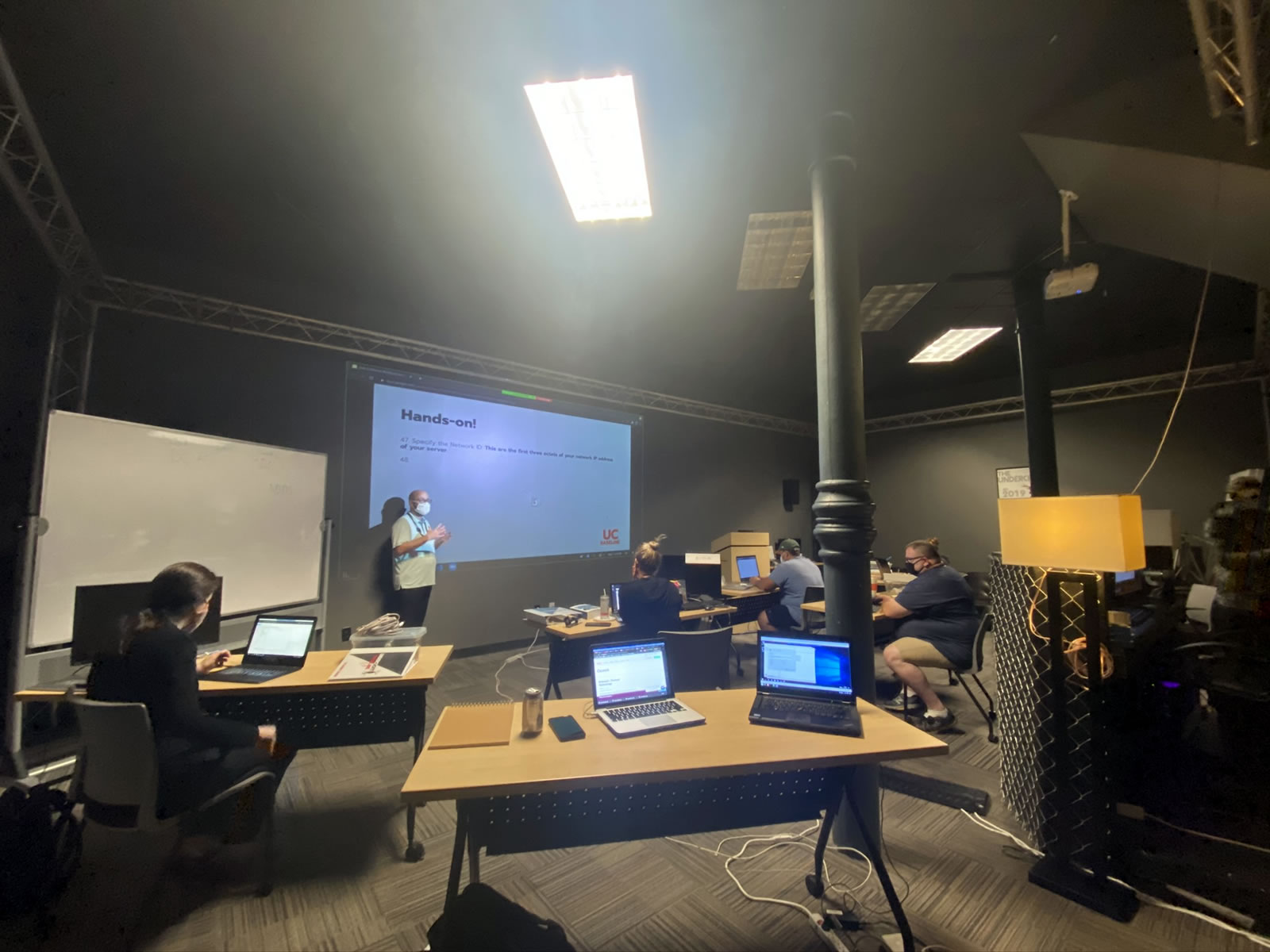
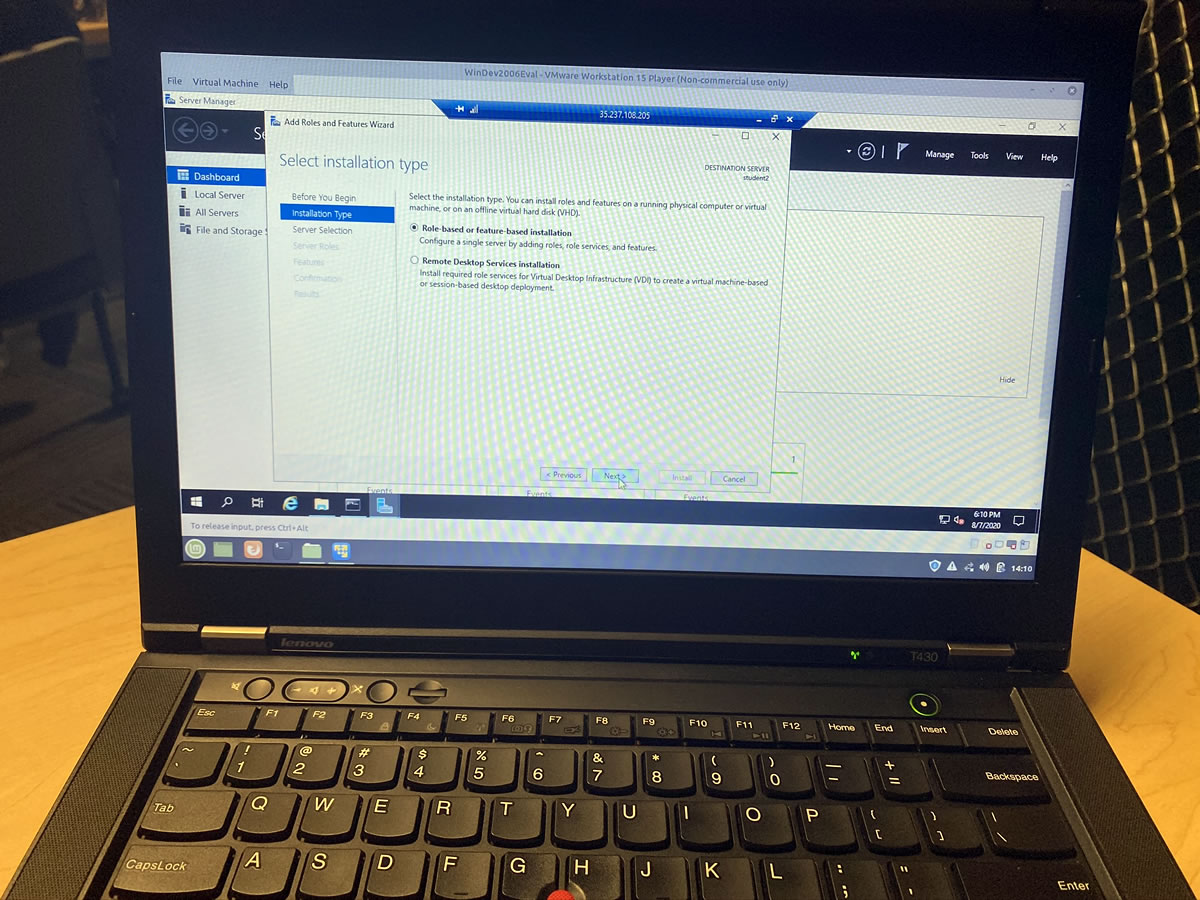
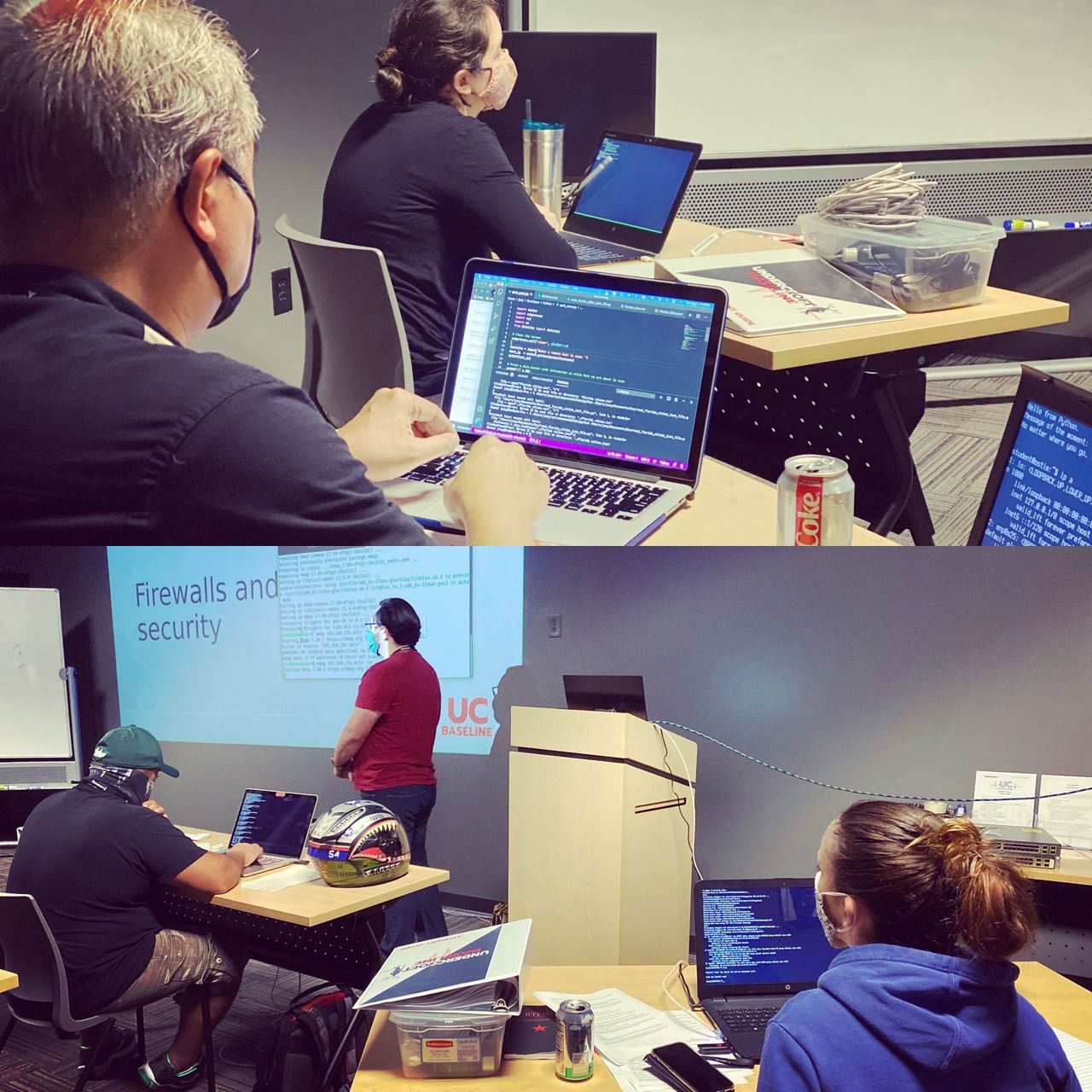
Here’s my daily view for seven hours a day for the next little while, as I’m part of the inaugural cohort of UC Baseline, the 5-week cybersecurity training program from Tampa bay’s security guild, The Undercroft:
Tap to see at full size.
Last week was devoted entirely to the “Hardware 101” part of the program. Here’s a video summary of what happened that week, and Yours Truly’s in a fair bit of it:
This week is “Networking 101”, which is all about how the bits gets transferred across wires and air to our hardware.
One of the exercises is making our own Ethernet cables. I can do it — just, very, very slowly…
Tap to see at full size.
We spent a good chunk of time setting up virtual LANs on our individually-assigned Cisco Catalyst 3750 programmable 48-port switches (alas, we don’t get to keep them), hooking up our Raspberry Pi 4 boxes (which we do get to keep) to them, and wiring our VLANs together via trunks:
Tap to see at full size.
It’s a strange world, where IOS doesn’t Apple’s refer to “iPhone Operating System” — part of my usual stomping grounds as a developer — but in the world of network administration, it’s Cisco’s Internetwork Operating System:
Tap to see at full size.
This is way outside my normal experience with networking, which I do at the application level, where I deal with data structures like arrays, dictionaries, base64-encoded data, and maybe the occasional data stream. This is the world of packets, frames, switching, and routing. I would still probably ruin a server room if left in charge of it, but after this course, I’d ruin it less.
I do have a refreshed generalized concept of what happens at the lower levels of the network, and that’s the important thing for me and the sort of work that I do.
It’s Monday, July 27th, which means that I’ve completed the Hardware 101 portion of the 5-week UC Baseline cybersecurity training program offered by Tampa Bay’s security guild, The Undercroft! Here’s a quick rundown of what I’ve posted so far about my experiences…
Day 4 of the Hardware 101 component of the UC Baseline cybersecurity program was all about security for the enterprise, which naturally included topics such as servers. Not everyone in the class has had the opportunity to tour a server room or data center, and this was their chance to see these machines up close.
Unlike the previous days, we did not attempt to dismantle and then reassemble the servers — this was a “look, but don’t touch” sort of lesson.
We also had a guest lecturer who gave us a pretty thorough walkthrough of the sorts of things involved in an enterprise server/data center setup, some of which went way over my head. I don’t see a sysadmin/system architect role in my future, but it might not hurt for me to do some supplementary reading on this topic.
Day 5 was the final day of Hardware 101 and started with something that I’ve always been terrible at: Making networking cables.
Arrrrgh.
We also spent some time looking over all sorts of intrusion devices, such as the incredibly cute “Pwnagotchi”, a Raspberry Pi Zero-based device that “listens” to wifi chatter to feed its machine learning program in order to figure out wifi passwords.
It uses an e-paper screen, which is quite legible and consumes little power.
It’s incredibly small:
Here’s a Pwnagotchi beside a U.S. quarter for size reference:
A great way to steal information to gain access to people’s accounts and systems is to set up a fake wifi hotspot at a place that offers free wifi, such as Starbucks. That’s what the Wifi Pineapple is for — people connect to it, thinking they’re connecting to Starbucks wifi. You route their signals through to the real Starbucks wifi, but you’re the go-between, and can “see” everything that your marks are sending on the internet: the data they’re passing back and forth, including stuff like user IDs and passwords:
It sends out a signal that causes devices currently connected to wifi to disconnect. You could use it in tandem with a Wifi Pineapple to force people to disconnect from the real wifi and then connect to the Pineapple instead, enabling you to read their internet communications.
If you really want to “sniff” all the wifi traffic in the room, you’ll want one of these — a high-gain antenna system hooked to a network interface controller (NIC) that reads signals in “promiscuous mode”, a capability that’s disabled in most NICs. In promiscuous mode, you can capture all wifi traffic instead of the bits of data that you’re authorized to receive. It’s a good network diagnostics tool — and it’s also useful for getting up to no good:
And finally, the Shark Jack. Plug it into someone’s network, either via the ethernet jack or USB, and it will execute scripts to get a map of the network or even deliver a payload somewhere onto the system:
It’s basically a real-world version of the device that Tony Stark slipped onto the command console of the SHIELD helicarrier in the first Avengers movie (it’s at the 0:44 mark):
I may have to invest in one of those bad boys. For research purposes, you understand.
We also had a guest lecturer who delivered a very thorough and informative presentation on getting started in cybersecurity. I’ll have to post notes on it later:
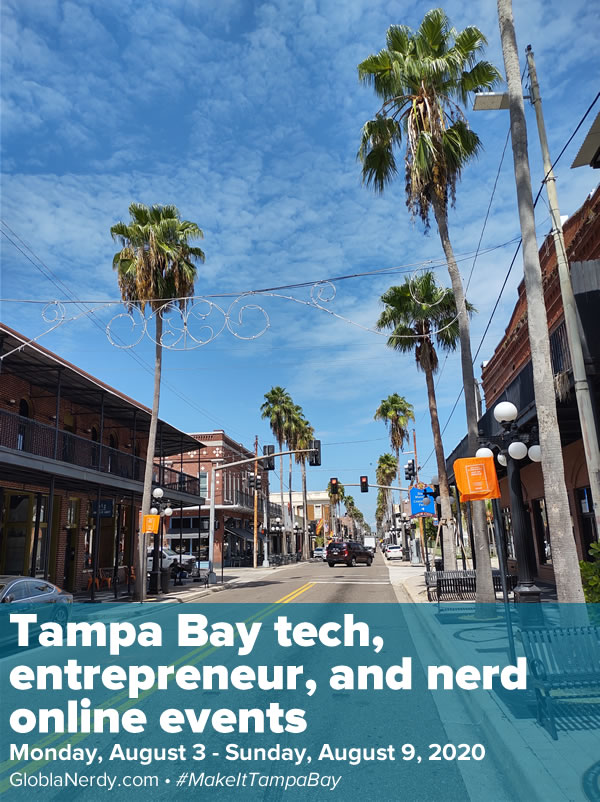
Hello, Tampa Bay techies, entrepreneurs, and nerds! Welcome to the weekly list of online-only events for techies, entrepreneurs, and nerds based in an around the Tampa Bay area.
Keep an eye on this post; I update it when I hear about new events, it’s always changing. Stay safe, stay connected, and #MakeItTampaBay!
Saturday: The Suncoast Developers Conference
Suncoast Developers Guild aren’t just a coding school — they’re a pillar of the Tampa Bay tech scene, and this place is all the better for their being around. Here’s one reason: they hold events like the upcoming Suncoast Developers Conference, which will happen online on Discord this Saturday, August 1, 2020.
At this free event, you’ll see Tampa Bay’s developers showcase and share their knowledge with others. They’ll cover all sorts of topics in bite-size (10 – 15 minute) presentations.
The conference will also feature some of Suncoast Developers Guild’s recent code school grads and their capstone projects. Get to know them, and if you like what you see and need more people in your organization, hire them!
Do you have an upcoming event that you’d like to see on this list?
If you know of an upcoming event that you think should appear on this list, please let me know!
Join the mailing list!
If you’d like to get this list in your email inbox every week, enter your email address below. You’ll only be emailed once a week, and the email will contain this list, plus links to any interesting news, upcoming events, and tech articles.
Join the Tampa Bay Tech Events list and always be informed of what’s coming up in Tampa Bay!
Wednesday: Day 3 continued the heavy hands-on portion of Hardware 101, the first segment of my five weeks at UC Baseline, the cybersecurity training program offered by Tampa Bay’s security guild, The Undercroft.
After taking apart and reassembling a desktop, it was time to up the ante and do the same with at least one laptop. I started with a Dell Latitude E5500, a bulky beast by today’s laptop standards, but one that’s more user-serviceable — and more easily taken apart — than most.
First step: Removing the battery.
The bottom panel was easy to pop open. It was held in place by nothing fancier than standard Phillips screws, which provided easy access to the RAM.
Next on the removal list: The optical drive. Once again, pretty straightforward — remove some anchoring screws, and then use a flathead screwdriver tip to push the the drive casing out.
The fan was quite easy to remove, as was the CPU heat sink.
Unlike the previous day’s desktop machines’ CPUs, which were in ZIF (zero insertion force) slots, laptop CPUs aren’t typically swappable, as they’re generally soldered onto the motherboard. This machine had a notebook-grade Core 2 Duo, which was typical for a mid-level laptop in the Windows 7 era.
It was also pretty easy to remove the keyboard…
…and once that was done, detaching the screen was a simple process.
With the disassembly complete, I laid out and labeled the parts that I’d extracted:
“All right, next challenge,” said Tremere, our instructor for the Hardware 101 portion of the course. “Disassemble, then reassemble the small one…”
I flipped it over, pleasantly surprised to see standard Phillips screws that were easy to access:
At this size, a laptop’s battery-to-actual-computer ratio jumps significantly:
This machine was still intended to be somewhat user-serviceable, so the battery and RAM were still easy to remove:
The drive didn’t take much effort to liberate, either:
The fan/heat sink combo didn’t put up much of a fight:
This is a machine made specifically for writing TPS reports and not much else, judging from its CPU. Still, I’m sure it could still do a serviceable job running a modern lightweight Linux — assuming it survives my disassembly and subsequent attempt to put it back together again.
Here are both patients, spread out across the operating table…
Re-assembly took a little longer, and I didn’t bother with photos of that process. I did manage to get it back together again, and with no extra parts!
I even the screen reattached! Later, I found a power adapter, and the machine managed start and get up to the BIOS screen, although the screen looked a little dim. Since I’m not trying out for a CompTIA hardware certificate, I’ll simply declare the procedure a success and not get too bogged down with fussy minutae such as “functioning” and “usable”.